Rollout & operations · Recovery & devices
A passkey FAQ for your support team: sample answers and checks
6 min read

Key points
- Group passkey questions into how it works, new or lost devices, can't sign in, and safety, and write answers before launch.
- Write answers in users' words, and be accurate about biometrics staying on the device and passkeys syncing through password managers.
- Give support staff a way to read a user's registered passkeys and a fixed procedure for verifying identity before re-registration.
After you launch passkeys, support starts getting questions like "What is a passkey?", "What happens when I change or lose my phone?", "I can't sign in," and "Is my fingerprint safe?" Preparing both user-facing answers and an internal checklist before launch keeps the load down and the answers consistent. This article gives sample answers you can adapt, plus the facts you must get right when writing them.
Decide these first
Settle three things internally before writing answers:
- One name. Call it "passkey" everywhere, in the UI and in the FAQ. Mixing in "biometric login" or "fingerprint login" makes users think these are separate features.
- Whether passwords stay. Many answers depend on whether users can still sign in with a password, and for how long.
- Your recovery procedure. How you verify a user who has lost every device and how they register a passkey again. Without this, you cannot answer "I can't sign in."
The samples below assume passwords stay for now and that recovery means re-registering after your own identity check. Adjust them to your policy.
Sample answers for users
What is a passkey?
A passkey lets you sign in with your phone or computer's screen lock (fingerprint, face or PIN) instead of a password. There is nothing to remember or type. Each passkey is created for this service only, so it will not work on a fake site.
The FIDO Alliance describes a passkey as a credential based on FIDO standards that lets users sign in to apps and websites with the same process they use to unlock their device. Put the technical explanation (public-key cryptography) on a separate page for those who want it.
Does the site receive my fingerprint or face data?
No. Your fingerprint or face is checked on your own device. We only receive confirmation that the check succeeded.
The FIDO Alliance says biometric information and processing stay on the device and are never sent to a remote server; the server only sees an assurance that the check succeeded. This question usually comes from worry, so answer it briefly and plainly.
Where is my passkey stored?
On your device, or in your device's password manager (such as Apple's iCloud Keychain or Google Password Manager). If syncing is turned on, you can use it on your other devices signed in to the same account.
Apple says passkeys sync across a user's devices through iCloud Keychain, which is end-to-end encrypted. Google announced in September 2024 that passkeys saved to Google Password Manager sync between Windows, macOS, Linux and Android. Microsoft says that on Windows you can save passkeys to a synced credential manager (such as Microsoft Password Manager) or locally on the device.
The FIDO Alliance calls passkeys synced between devices through a cloud service "synced passkeys," and those that never leave a single device "device-bound passkeys." Passkeys on a security key are the latter.
I got a new phone. What happens to my passkey?
If you sign in to the same account on your new phone (for example, your Apple Account or Google Account) and passkey syncing is on, it will work as before. If not, sign in on the new phone with your password or another method and add a passkey under [Account settings]. Before giving away your old phone, remove its passkey under [Account settings].
Replace [Account settings] with the name of your own screen.
I lost my phone.
First, disable the passkey on the lost phone. If you can still sign in with another device or your password, remove that passkey under [Account settings]. If you cannot sign in, contact us. After we confirm your identity, we will help you register a new passkey.
Spell out your identity check here (a message to the email on file, document review, and so on). It saves a round of back-and-forth.
I want to sign in on my computer, but my passkey is on my phone.
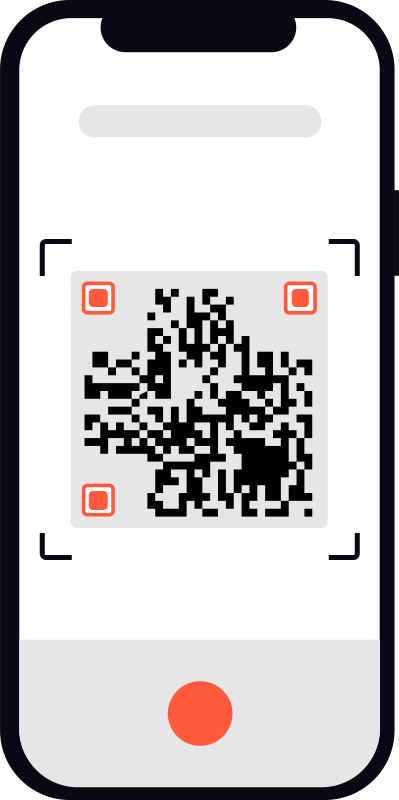
On the sign-in screen, choose "Sign in with a passkey" and pick the option to use another device. A QR code may appear. Scan it with your phone's camera and confirm with your fingerprint or face on the phone. If you use this computer often, add a passkey for it under [Account settings] after you sign in.
The W3C WebAuthn spec describes the same flow: if the synced passkey is not on the current device, the browser or OS prompts the user to use an external authenticator such as a phone or security key.
It says "already registered on this device."
This device (or its password manager) already has a passkey for your account. You don't need to register again. Choose "Sign in with a passkey" on the sign-in screen.
Can I still use my password after adding a passkey?
Yes, you can still sign in with your password for now. (If you plan to retire passwords, give the date here.)
I share a device with family.
Anyone who knows the device's screen lock PIN may be able to use passkeys saved on it. Please don't register a passkey on a shared device.
What support staff should check
When a ticket comes in, check in this order:
- Which device is the user signing in on? OS, browser, and whether it is the device where the passkey was registered.
- The list of registered passkeys. When each was registered and last used, and whether it is a synced passkey. If there is one the user does not recognize, suspect account takeover and switch to that procedure.
- Other ways in. If the user can sign in with a password or a passkey on another device, have them sign in and add or remove passkeys themselves. That is the safest path.
- Identity check if everything is lost. Verify identity with your agreed method, then start re-registration.
State in the FAQ that support will never ask for your password, verification codes or screen lock PIN. It also warns users about scammers posing as support.
Implementing this with SealGate
With SealGate, support staff can see a user's passkeys with GET /v1/users/{external_id}/credentials or on the user's page in the dashboard: device name, created and last used times, whether it is a synced passkey (backup_eligible, backed_up), and whether it has been revoked. Revoke a lost device's passkey with DELETE /v1/credentials/{credential_id}.
For a user who has lost every device, verify their identity on your side, then call POST /v1/recovery/start to get a recovery token (valid for 15 minutes) and pass it as recovery_token to POST /v1/register/options so they can register again. SealGate does not verify identity, so the method is up to you. See Recovery in the docs.
FAQ
Where should the FAQ live?
One click from the sign-in screen and the passkey registration screen. Users who cannot sign in cannot reach pages behind login, so make it public.
Should answers include step-by-step instructions for each OS?
OS and password manager screens change with updates. Link to each vendor's support pages for detailed steps and describe only your own screens. That is much easier to maintain.
Sources
- Passkeys (FIDO Alliance)
- About the security of passkeys (Apple Support)
- Sync passkeys securely across your devices (Google, September 19, 2024)
- What are passkeys and why they matter (Microsoft Support)
- Web Authentication: An API for accessing Public Key Credentials Level 3 (W3C Recommendation, August 25, 2026)
Related posts
Recovery & devices
Helping users who lost or replaced their device: moving and re-registering passkeys
What to do when passkey users replace or lose a device: synced vs. device-bound, whether the old device is at hand, revocation, re-registration and support.
Recovery & devices
Designing passkey account recovery for users who lose their device
How to design account recovery for users who can no longer use their passkey, from preventing loss to self-service recovery, support-desk checks, notification, and revocation, following NIST SP 800-63B-4.
Passkey basics
Signing in with a passkey from another device: QR codes and hybrid
Sign in by scanning a QR code with the passkey on your phone. Why the hybrid transport checks Bluetooth proximity, what your service needs, and common problems.