Passkey basics
Signing in with a passkey from another device: QR codes and hybrid
5 min read
Key points
- Without a passkey on the computer, people can scan the QR code the browser shows with their phone and sign in with the phone's passkey (FIDO cross-device authentication).
- It runs on the CTAP hybrid transport, which exchanges keys through the QR code and checks with Bluetooth that the devices are near each other, so a remote attacker can't use it.
- Your service needs no special code, and offering to create a passkey on the computer afterward removes the QR step next time.
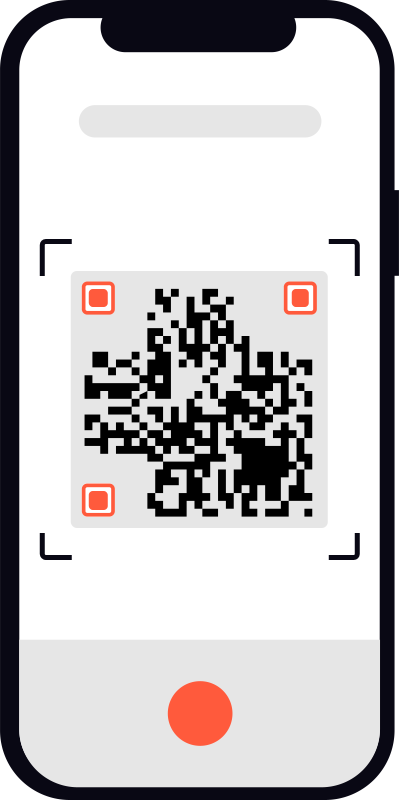
Even when there is no passkey on the computer, people can sign in by scanning the QR code in the browser's passkey dialog with their phone's camera and confirming with the passkey on the phone. The FIDO Alliance calls this cross-device authentication, and it runs on a CTAP transport called hybrid. The QR code is used to exchange keys, and a Bluetooth signal proves the phone and computer are near each other, so an attacker who gets hold of the QR code from somewhere else can't use it. Your service needs no special code. Offering to create a passkey on the computer after sign-in means no QR code next time.
What people see
- On the computer, they open your sign-in page and choose "Sign in with a passkey"
- In the browser dialog they choose to use another device (the wording varies by OS and browser), and a QR code appears
- They scan the QR code with the phone's camera
- The phone asks them to confirm with its screen lock (fingerprint, face or PIN)
- Once confirmed, sign-in completes in the computer's browser
Google's account help tells people to make sure Bluetooth is on for this. It also explains that the next time the same computer and phone are used together, the phone gets a notification without needing a QR code.
How it works: hybrid
The FIDO Alliance's CTAP 2.2 specification describes the hybrid transport as follows:
- Hybrid separates the proof that the computer and phone are physically close from the transport of the authentication messages
- Messages travel through a network relay called a tunnel service
- Proximity is shown with BLE (Bluetooth Low Energy) advertisements
- A session can start from a QR code, or, for a computer and phone that were linked before, from stored linking information without a QR code
The spec explains why proximity matters. Without it, a malicious site could display a QR code and persuade someone to scan it with their phone. Because the phone requires proof that the computer received the BLE advertisement it broadcasts, an attacker would need a Bluetooth radio near the victim.
NIST SP 800-63B-4 also covers hybrid connections, noting that using a visual code such as a QR code for key establishment, together with a wireless technology such as Bluetooth LE to require physical proximity, reduces the risk of phishing attacks that would otherwise associate the authenticator with an attacker's device.
In WebAuthn, hybrid is one of the AuthenticatorTransport values, defined as an authenticator that "can be contacted using a combination of (often separate) data-transport and proximity mechanisms," for example "authentication on a desktop computer using a smartphone."
What stays protected
- Phishing resistance is unchanged. The signature covers the origin verified by the computer's browser. A fake site can't get a signature for the real one
- The private key stays on the phone. Nothing is copied to the computer; only that one signature is made on the phone
- Remote abuse is hard. Even if someone forwards the QR code, the connection fails without the BLE advertisement nearby
What your service needs to do
No special implementation
If your sign-in options request a passkey, the browser offers the hybrid option. Including each key's transports in allowCredentials gives the browser hints for narrowing down choices.
Offer a passkey on this device after sign-in
The WebAuthn spec notes that if the sign-in result's authenticatorAttachment is cross-platform and a platform authenticator (biometrics and the like) is available on this device, it's an opportunity to prompt the user to register this device's authenticator. The web.dev checklist also recommends encouraging people who signed in with a passkey from another device to create one locally.
authenticatorAttachment is reported by the browser and isn't covered by the signature. Use it to decide what to show, not to make authorization decisions.
Prepare help text
Most hybrid problems come from the user's setup. Putting the following on your sign-in or help page cuts down on support requests:
- Turn on Bluetooth on both the computer and the phone
- If the computer has no Bluetooth, this method won't work; sign in another way, such as with a password
- Scan the QR code with the phone's camera or a QR scanner app
Common problems
| Symptom | Likely cause |
|---|---|
| Scanning the QR code does nothing | Bluetooth is off on the computer or phone, or the computer has no Bluetooth |
| No QR code appears | The browser or OS doesn't support this method, or a different option was chosen in the dialog |
| The phone shows no passkey for the site | There's no passkey for this site on the phone (different RP ID, or saved with a different provider) |
| Scanning every time is tedious | Create a passkey on the computer too, and it's no longer needed |
Implementing this with SealGate
SealGate's sign-in options are standard PublicKeyCredentialRequestOptions passed to the browser, so hybrid needs no extra configuration. To show a prompt after someone signs in with a passkey from another device, have your server read authenticatorAttachment from the response it relays to verify (the AuthenticationResponseJSON sent by the SDK) and include it in your own response. In the browser, check SealGate.platformAuthenticatorAvailable() to see whether this device has biometrics, then offer registration with sg.register(). The transports of registered keys are available as transports in the device list (GET /v1/users/{external_id}/credentials). See the docs for details.
FAQ
Do the phone and computer need to be on the same Wi-Fi?
No. Per the spec, messages go through the tunnel service and proximity is checked with Bluetooth advertisements. Being on the same network isn't required.
If someone sends a photo of the QR code, can an attacker sign in remotely?
The connection fails unless the BLE advertisement is received nearby, so remote abuse is difficult.
Can security keys be used from the same dialog?
Yes. USB and NFC security keys can also be chosen from the browser dialog.
Sources
- Passkeys (FIDO Alliance)
- Client to Authenticator Protocol (CTAP) v2.2 (FIDO Alliance, July 14, 2025)
- NIST SP 800-63B-4 Digital Identity Guidelines: Authentication and Authenticator Management (NIST, August 2025)
- Web Authentication: An API for accessing Public Key Credentials Level 3 (W3C, August 25, 2026)
- Secure and seamless passkeys: A deployment checklist (web.dev, June 5, 2025)
- Sign in with a passkey instead of a password (Google Account Help)
Related posts
Passkey basics
What is a passkey? How it works and how it differs from a password
A passkey is a sign-in credential based on FIDO2 / WebAuthn and public-key cryptography. Here is how it works for developers, why it resists phishing, and what the server actually stores.
Passkey basics · Recovery & devices
Synced vs. device-bound passkeys: the difference and how to tell them apart
Synced passkeys are copied across devices; device-bound ones stay on one authenticator. How to tell them apart with BE and BS flags, and which to accept.
Rollout & operations
Prompting users to create a passkey after sign-in: timing, copy and \"not now\"
The best time to offer a passkey is right after sign-in. When to prompt and whom, what to say, how to handle \"not now,\" and where conditional create fits.